Have you ever opened a message before replying? Many people face this problem each week. Read receipts tell others when messages get opened. Some people like this feature for quick replies. Others prefer more privacy while reading messages.
Learning how to turn off read receipts depends on your app. Apple Messages uses its own settings. WhatsApp uses another privacy control. Google Messages handles receipts through RCS settings. Teams also keeps its own read receipt control.
This guide covers the most common messaging apps. You’ll find simple steps for each platform. You’ll also learn what happens afterward.
Why Read Receipts Work Differently Across Apps
Read receipts don’t use one shared phone setting. Each app manages message status separately. Your Apple setting only affects supported Apple messages.
- Apple Messages: Apple controls receipts through Messages settings.
- WhatsApp: WhatsApp controls receipts through Privacy settings.
- Google Messages: RCS controls read status for supported chats.
- Microsoft Teams: Teams offers its own receipt setting.
- LinkedIn: LinkedIn controls delivery and typing indicators.
Apple says iMessage must work for read receipts. SMS messages don’t use Apple’s receipt feature.
How to Turn Off Read Receipts on iPhone
iPhone users get simple controls inside Messages settings. Apple also supports contact-based receipt settings. This gives you more control over specific conversations.
Open Your Messages Settings
Start by opening Settings on your iPhone. Tap Apps and then choose Messages. Find Send Read Receipts inside the settings. This controls receipts for supported iMessage chats.
Turn Off Send Read Receipts
Switch Send Read Receipts off from there. Your contacts won’t see Read afterward. They still see Delivered after the message is delivered. Apple confirms this setting affects iMessage conversations.
Turn Receipts Off For One Contact
You don’t need to disable receipts everywhere. Open Messages and choose one conversation. Tap the contact icon at the top. Turn off Send Read Receipts there. Apple supports this contact-level control.
How to Turn Off Read Receipts on Other Apps
Your iPhone setting doesn’t control third-party apps. Each service keeps its own privacy controls. Check each app separately after changing your iPhone settings.
- WhatsApp: Open Settings, then Privacy, then Read receipts.
- Google Messages: Open RCS settings and disable read receipts.
- Teams: Open Settings and choose Chats and channels.
- LinkedIn: Open Data privacy and messaging settings.
- Instagram: Check current message privacy controls.
WhatsApp also changes receipt visibility after disabling receipts. You won’t see other users’ receipts afterward. Group chats still use separate receipt behavior.
How to Turn Off Read Receipts on Android
Android phones use different messaging apps. Google Messages handles receipts through RCS settings. Samsung phones might show different menu names. So first check your messaging app.
Open Google Messages
Open Google Messages on your Android phone. Tap your profile picture near the top. Then open Messages settings from there. Choose RCS chats from your settings list.
Turn Off Read Receipts
Find Send read receipts inside RCS settings. Switch this setting off for your account. RCS controls apply only to supported conversations. Regular SMS messages don’t use RCS receipts.
Check Your Message Type
Look at your conversation before changing settings. RCS chats support features like read receipts. Standard SMS messages follow different message rules. This difference often causes confusion for users.
How to Turn Off Read Receipts on WhatsApp
WhatsApp offers a direct privacy setting for receipts. Open WhatsApp and enter your Settings menu. Then choose Privacy and find Read receipts.
Turn the Read receipts switch off there. Your contacts won’t see blue ticks afterward. You also won’t see their read receipts. WhatsApp confirms this change affects personal conversations.
This setting works separately from iPhone Messages. Changing Apple settings won’t affect WhatsApp. You need WhatsApp’s own privacy setting.
If you search for how to turn off read receipts on WhatsApp, use WhatsApp’s Privacy menu. Current WhatsApp guidance places read receipts there.
How to Turn Off Read Receipts on Instagram
Instagram handles message receipts inside its app. Open Instagram and enter your messages. Select the conversation you want to manage. Then check the current privacy controls.
Recent Instagram versions offer receipt controls. Menu names might differ between app versions. So check Messages and privacy settings carefully.
If you search for how to turn off read receipts on Instagram, check Instagram’s current message settings. Avoid old tricks from random websites. App settings change over time.
How to Turn Off Read Receipts on Messenger
Facebook Messenger uses its own receipt controls. Open Messenger and enter your settings. Look for Privacy and safety options. Then check the Read receipts setting.
Messenger settings sometimes differ between app versions. Your menu might show different names. Update the app before checking again.
The iPhone Messages setting won’t affect Messenger. Each service controls its own message status. So change Messenger settings inside Messenger.
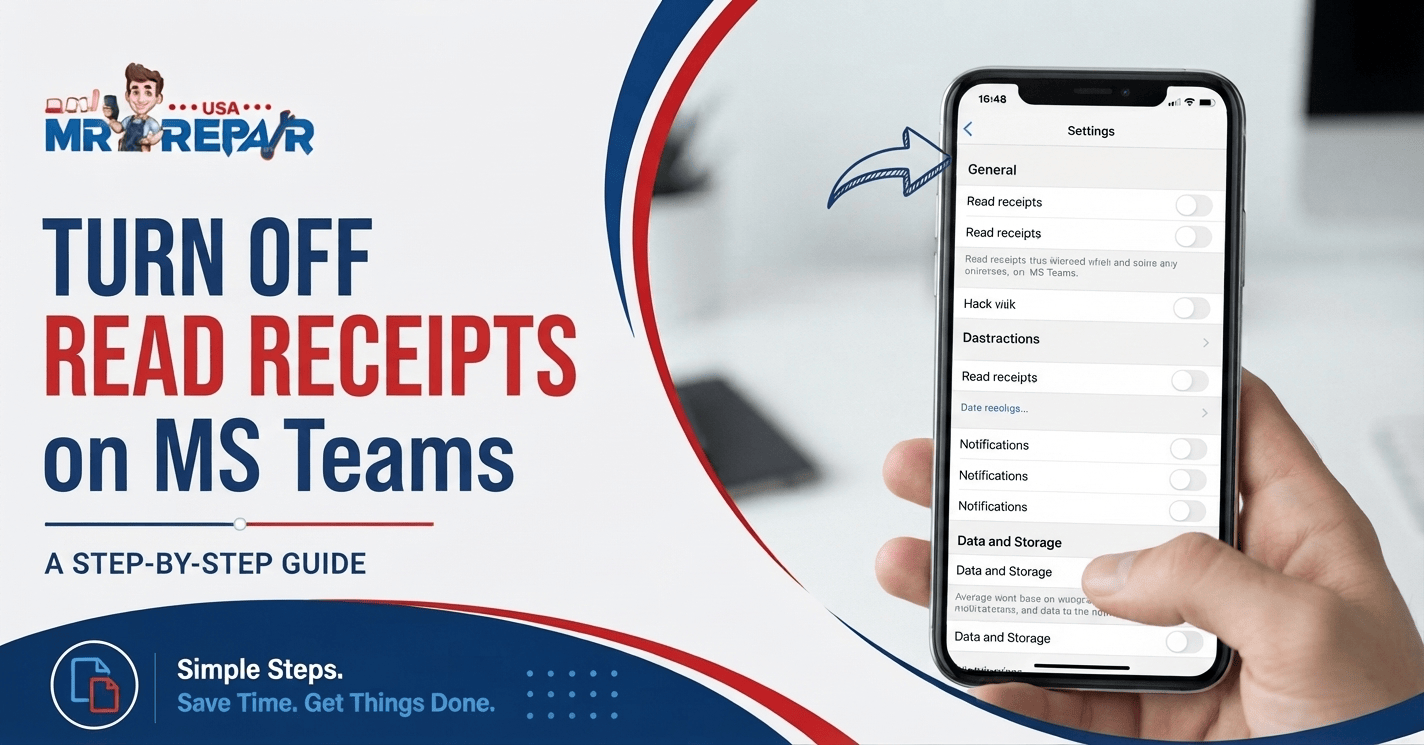
How to Turn Off Read Receipts on Teams
Microsoft Teams has its own read receipt setting. Open Teams and select your profile picture. Then choose Settings from the menu. Open Chats and channels afterward.
Find read receipts inside those settings. Turn the feature off from there. Microsoft says admins control this option sometimes. Your workplace policy might block this setting.
Teams also handle group chats differently. Read receipts show who viewed messages. Some account types have extra restrictions. Check your account settings before changing anything.
How to Turn Off Read Receipts on LinkedIn
LinkedIn uses delivery and typing indicators. Open LinkedIn and tap your profile picture. Go to Settings and Privacy from there. Then select Data privacy and Messaging experience.
Find Delivery and typing indicators in those settings. Turn the setting off to reduce message status sharing.
LinkedIn manages this setting separately from your phone. Your iPhone receipt setting won’t change LinkedIn. Check LinkedIn itself when privacy matters.
What Happens After You Turn Off Read Receipts?
Turning off receipts changes what others see. Your message status might show Delivered instead. The exact result depends on your messaging app.
Apple uses Read and Delivered indicators. Read appears after opening supported iMessages. Delivered shows successful message delivery.
WhatsApp uses check marks for message status. Two blue checks show a read message. Turning receipts off removes personal read status. You also lose access to others’ receipts.
These settings don’t delete your conversations. They don’t block incoming messages either. They simply change the message status sharing.
Should You Keep Read Receipts Turned Off?
Read receipts work well for people needing quick updates. They also create pressure for some users. Privacy often matters more than instant message status.
Turning receipts off gives you more control. You get more time before replying. You also avoid unwanted pressure after opening messages.
Still, check each app separately. Your iPhone settings won’t control other services. WhatsApp, Teams, LinkedIn, and Instagram use separate settings.
If privacy matters, review each app carefully. Small setting changes often prevent unwanted message signals.
How Phone Fix & Jewelry Can Help
Phone Fix & Jewelry serves customers around Alexandria, Virginia. The shop repairs phones, tablets, laptops, and game consoles. Their phone service covers many common device problems. These include screens, batteries, ports, cameras,s and speakers.
A damaged phone might make settings hard to use. Broken screens often affect touch controls. Charging problems might also stop normal phone use. Their technicians check devices before repair work begins.
The shop provides written warranty coverage for repairs. Customers also receive checks before leaving the store. Technicians test touchscreens, cameras, speakers,rs and charging ports.
You’ll find the shop at 504C S Van Dorn St. The store sits near the Van Dorn Metro station. Free parking is in front of the shop. Call (703) 328 0514 for repair help.
Visit Phone Fix & Jewelry Repair Services for more service details.
Conclusion
Read receipts tell others when messages get opened. Some users like them for quick communication. Others prefer more control over their replies. Your app decides where receipt settings appear.
Apple users should check Messages settings first. Android users should check RCS settings. WhatsApp, Teams, and LinkedIn use separate controls.
If your phone causes setting problems, seek repair help. Phone Fix & Jewelry serves customers in Alexandria. Call (703) 328 0514 for assistance.
Frequently Asked Questions:
How do I turn off read receipts on my iPhone?
Open Settings, tap Apps, then Messages. Turn off Send Read Receipts there. This affects supported iMessage conversations.
How do I turn off read receipts in iMessage?
Open Settings and choose Apps, then Messages. Turn off Send Read Receipts. You also have contact-specific controls.
How to stop someone from seeing if you read their text?
Turn off read receipts before opening new messages. On iPhone, use Messages settings. Other apps require their own privacy controls.
Can I turn off read receipts without them knowing?
Most apps don’t send a direct alert. The Read status simply stops appearing. Some apps change your own receipt visibility too.
Can someone tell if I turned off read receipts?
People might notice that Read no longer appears. They don’t receive a direct warning. The exact behavior depends on your messaging app.