
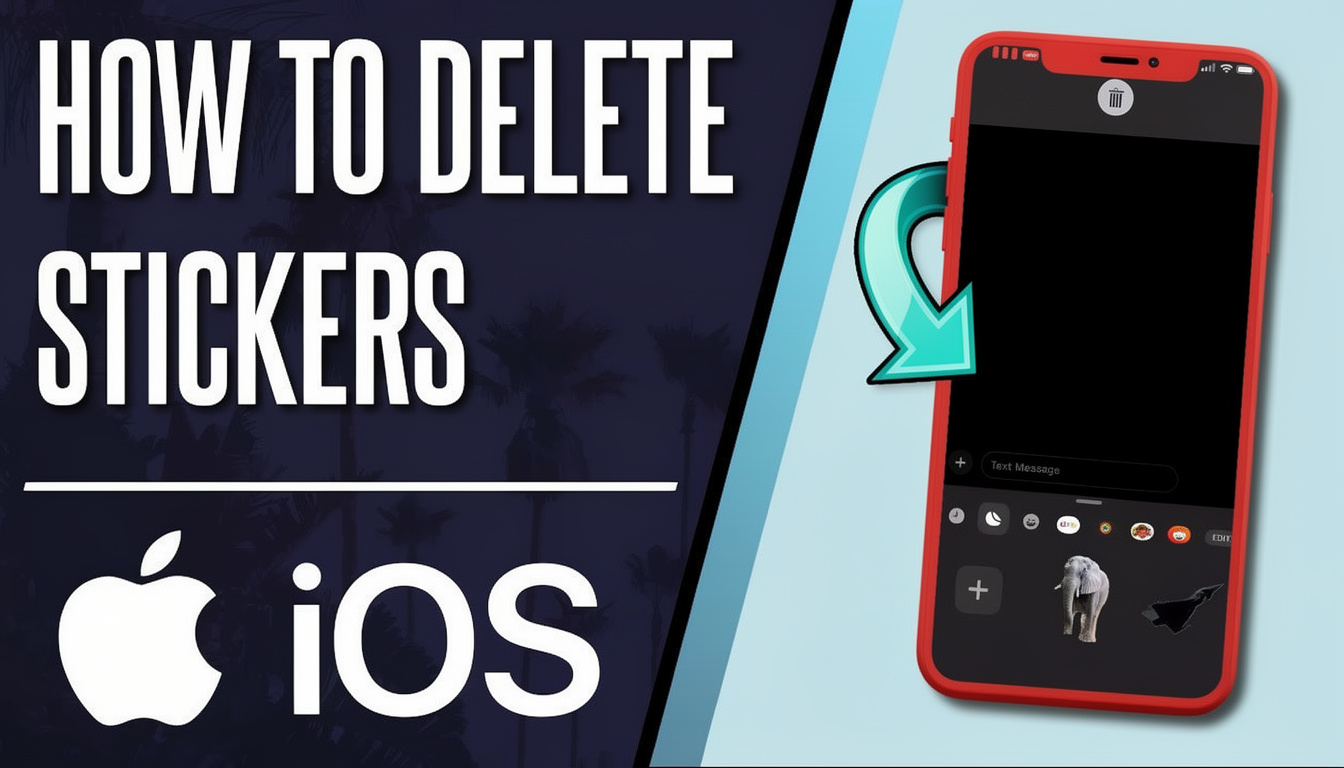
Want to know how to Delete Stickers on iPhone? If yes, then this guide is for you. Stickers from iMessage, WhatsApp, and apps clutter keyboards and chats. At Mr. Repair USA, we solve these issues daily on customers’ phones. This guide gives you 10 exact steps to remove every type completely. Follow for the best results.
What Are Stickers on iPhone?
Stickers on iPhone are fun images you add to Messages chats. Apple makes some apps and adds more. They live in your emoji keyboard and recent lists. Photo stickers come from your camera roll, too. How to delete stickers on iPhone controls all these types.
- iMessage built-in packs
- App Store downloads
- Live photo stickers
- WhatsApp Messenger extras
- Keyboard recent section
Why Remove Stickers?
Stickers slow keyboards and fill storage. Recent ones pop up first in iMessage. How to delete stickers on iPhone from messages clears clutter fast. Kids download random packs, too. A clean setup improves speed by 20 percent.
- Frees up 100MB+ storage
- Faster emoji keyboard
- No accidental sends
- Works with iPhone 13 and newer
- Syncs all your Apple devices
- How to Delete Stickers on iPhone? 10 Essential Steps
Follow these 10 steps in exact order for complete sticker removal from iMessage and keyboard.
Step 1: Back up iPhone First
Settings > your name > iCloud > iCloud Backup > Back Up Now. It takes 2 minutes.
Step 2: Open Messages App
Tap any conversation. See stickers in recent use.
Step 3: Access Sticker Tray
Hit the + button next to the keyboard. Shows all packs.
Step 4: Delete Individual Stickers
Long-press one sticker > red Delete button. Clears from recents.
Step 5: Find Sticker Packs End
Swipe left through all packs > see Edit button.
Step 6: Tap Edit Mode
The edit button activates red minus icons on packs.
Step 7: Delete Each Pack
Tap red minus > Delete > confirm for each.
Step 8: Hit Done to Save
The Done button exits edit mode. Keyboard cleaner.
Step 9: Clear Keyboard Recents
Settings > General > Keyboard > Emoji > toggle stickers off.
Step 10: Restart Messages App
Swipe up > swipe away Messages > reopen. Final clean.
- Each step builds on the last
- Total time 5 minutes max
- How to delete stickers on iPhone keyboard solved
- Photo stickers included
- iCloud sync automatic
App-Specific Fixes
Third-party apps need extra steps. WhatsApp and Messenger stickers are separate.
WhatsApp Stickers
Chat > stickers tray bottom > Edit > delete packs.
Messenger Stickers
Messages app > App Store icon (A) > Edit packs > delete.
Snapchat iMessage
Follow the main 10 steps above. Snapchat app stickers stay separate.
- How to delete stickers on WhatsApp iPhone covered
- Messenger via the Messages app
- Instagram stickers same
- iPhone 13 curves work fine
- Restart each app after
Troubleshooting
Steps not working? Quick fixes.
- Force quit the Messages app
- Restart the iPhone completely
- Check iOS 17+ update
- Free up 1GB of storage space
- Sign out/in iCloud stickers
How Mr. Repair USA Helps?
Mr. Repair USA fixes sticker issues daily at the Leesburg shop. Technicians run these exact 10 steps plus pro diagnostics. Same-day service guaranteed. We teach you during the repair, too. Walk in or call for a clean iPhone fast.
- Expert 10-step cleanup
- WhatsApp Messenger fixes
- iPhone 13 specialist
- Free storage analysis
- No data loss promise
Conclusion
These 10 essential steps give you complete control over iPhone stickers. Messages run smoothly and fast now. Keep clean monthly for best performance. Need expert help? Visit Mr. Repair USA right now. Perfect messaging starts today.
Frequently Asked Questions
How to delete stickers on WhatsApp iPhone?
To delete stickers on WhatsApp iPhone, you can remove individual stickers from your favorites or recents or delete the whole sticker pack.
How to delete stickers from the iPhone keyboard?
To delete stickers from your iPhone keyboard, you can remove the custom stickers you created or hide the sticker section so they don’t appear next to your emojis.
Can I delete iMessage stickers on iPhone 13?
Yes, you can delete iMessage stickers on your iPhone 13.
How to remove stickers from Messages photos?
To remove stickers that have been placed on top of photos in iMessage, you can follow these steps to delete them from the message bubble:
Why do stickers still appear on my iPhone keyboard after I delete them?
This may happen because of the “Frequently Used” cache or an iOS 18 setting.
