
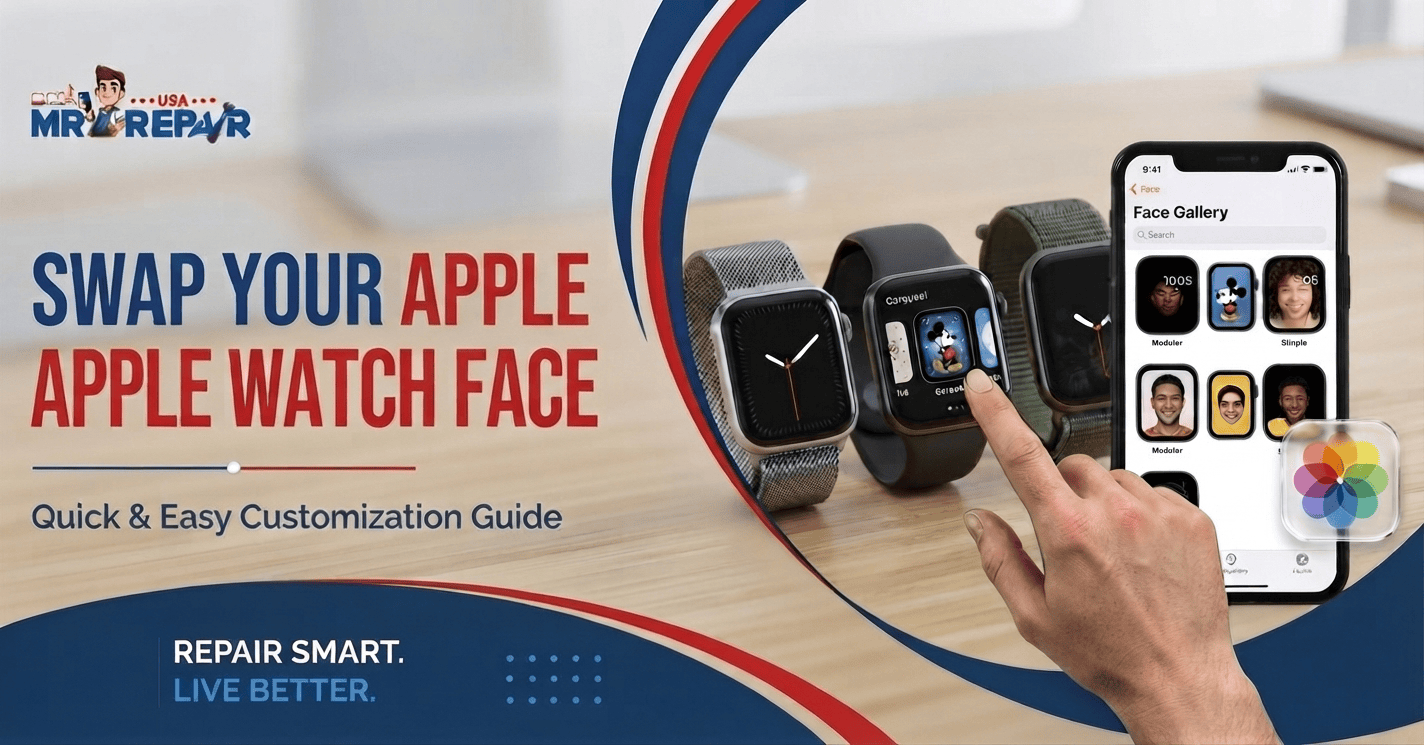
Have you grown tired of your face on the Apple Watch? You aren’t stuck with one design. Apple gives you many face choices. You also get colors and small information areas. These areas show things like weather and battery status.
You can change the watch face on the Apple Watch. You can also use the Watch app on iPhone. Both methods work with saved watch faces. You can also create a new face. Photos offer another fun choice for your watch. Let’s look at each method below.
Things to Know Before Changing Your Watch Face
Changing a watch face takes very little time. You only need your watch or a paired iPhone. Your saved faces appear inside your personal collection.
- Saved Faces: Your added faces stay inside your collection.
- Face Gallery: Browse Apple’s available face designs there.
- Colors: Some faces offer several color choices.
- Complications: Add small information boxes to many faces.
- Photos: Use selected pictures as your watch background.
Apple says the Face Gallery offers the easiest setup. You can also change faces directly. Your iPhone gives you a larger preview.
How to Change Watch Face on the Apple Watch
The watch itself offers the fastest method. Use this method for saved faces. You don’t need your iPhone nearby to switch.
Switch Between Saved Watch Faces
First, wake your Apple Watch screen. Touch and hold the current watch face. Your saved faces will appear on screen. Swipe left or right through those faces. Tap your preferred face when you find it. Your watch will switch to that face.
Apple currently recommends this touch-and-hold method. You can also turn on swipe switching.
Add a New Watch Face
Touch and hold your current watch face first. Swipe left until you reach the plus button. Tap the plus button to browse faces. Choose a face from the available groups. Tap Add after choosing your design.
You can then adjust its available settings. Some faces offer color and complication choices. Apple stores your new face afterward.
Edit Your Current Watch Face
Touch and hold your current face. Find the face you want to edit. Tap Edit below the selected face. Swipe through its available settings. Change colors or available complication areas. Press the Digital Crown when finished.
Different faces offer different editing choices. Some faces have more settings than others.
How to Change Watch Face on iPhone
Many people prefer using their iPhone. The larger screen makes face choices easier. You also get a better preview before saving. Apple places these controls inside the Watch app.
Use the Face Gallery
Open the Watch app on your iPhone. Tap Face Gallery at the bottom. Browse categories for different watch face styles. Select a face you like. Choose its color and other available settings. Add any complications you want to use. Tap Add when your setup looks right.
The new face joins your saved collection. It also becomes your current watch face.
Change a Saved Face
Open the Watch app on your iPhone. Tap My Watch at the bottom. Find your saved faces near the top. Tap the face you want to use. Select Set as current Watch Face. Your Apple Watch should switch soon afterward.
This method works well for saved faces. It also gives you more screen space.
Rearrange Your Watch Faces
Your saved faces follow a set order. You can change this order anytime. Open the Watch app on your iPhone. Go to My Watch and My Faces. Tap Edit beside your saved faces. Drag each face into your preferred order.
Reordering helps when you use several faces. Put your most-used face near the front.
Apple Watch Face Options Worth Trying
Apple offers many face styles and layouts. Your best choice depends on your needs. Some faces focus on clean time displays. Others show more information at once.
- Simple Faces: Use clean designs with fewer details.
- Fitness Faces: Show workout data and related details.
- Data Rich Faces: Display several useful information boxes.
- Photo Faces: Show selected pictures from your library.
- Activity Faces: Keep fitness details easy to reach.
Apple groups faces inside the Face Gallery. Available choices depend on your watch. Your watchOS version also affects available faces.
How to Change Watch Face to a Photo
Photos give your watch a personal look. You can use pictures from your iPhone. Apple provides photo-based face options inside Face Gallery.
Choose Photos From Face Gallery
Open the Watch app on your iPhone. Tap Face Gallery at the bottom. Scroll until you find Photos. Pick your preferred photo face style. Choose the pictures you want to display. Adjust the available settings before adding it.
Tap Add when everything looks right. Your selected photos then appear on your watch.
Create a Face From Your Photos
You can also start inside Photos. Open the Photos app on your iPhone. Select the picture you want to use. Tap Share and look for watch face options. Follow the screen prompts to finish setup.
This method works well for family photos. You could also use travel pictures or pets.
Use Several Photos
A photo face doesn’t need one picture. You can select several pictures for display. Your watch then shows selected images from your collection. This works well for changing backgrounds.
Pick clear pictures with open spaces. Busy images might hide the clock. Simple photos usually look cleaner on small screens.
How to Enable Swipe to Change Watch Face
Apple changed watch face gestures with watchOS 10.2. The swipe option returned as a setting afterward. You need to turn it on first.
Open Settings on your Apple Watch. Tap Clock and find Swipe to Switch Watch Face. Turn this setting on. You can now swipe between saved faces.
This setting saves time between face changes. It works when you have several saved faces. Apple confirms this feature for watchOS 10.2.
How to Swipe Between Watch Faces
First, make sure swipe switching stays enabled. Open Settings and tap Clock. Turn on Swipe to Switch Watch Face.
Return to your current watch face. Swipe left or right across the screen. Your next saved face should appear. Keep swiping to move through your collection.
If swiping does nothing, check the setting again. Also check your watchOS version for support.
How to Remove an Apple Watch Face
Old faces sometimes make your collection messy. Removing unused faces keeps things easier. You can remove faces from your watch. You can also remove them using your iPhone.
Remove a Face From Your Watch
Touch and hold your current watch face. Swipe until you find the unwanted face. Swipe upward on that face. Tap Remove to delete it.
You can add the same face again later. Apple keeps adding and removing faces simply.
Remove a Face Using iPhone
Open the Watch app on your iPhone. Tap My Watch and find My Faces. Tap Edit beside your saved faces. Tap the remove button beside your chosen face. Tap Remove to confirm the change.
Your watch will update the saved collection afterward.
Apple Watch Models and Face Changes
People often search for model-specific steps. The basic process stays similar across models. Your watchOS version matters more than the model name.
Searches often include Apple Watch Series 10. Others mention Apple Watch Series 11. Apple Watch SE users also ask similar questions. Ultra owners search for the same face controls.
The same face rules don’t fit every model. Some newer watches support newer face designs. Apple also changes features through watchOS updates.
So check your watchOS version first. Then follow the matching Apple instructions.
Why Your Apple Watch Face Won’t Change
Sometimes the problem isn’t your watch face. A setting or software issue might block changes. Start with simple checks before seeking repair help.
Check whether your watch responds to touch. Then check your current watchOS version. Also check whether your iPhone connects properly. Restart both devices if the issue continues.
If your screen ignores touch, the hardware might be causing trouble. A damaged display also affects face controls. Water damage might create similar touch problems.
How Phone Fix & Jewelry Can Help
Phone Fix & Jewelry helps with Apple device problems. Their Alexandria shop handles smartphone repairs and more. They also repair tablets, laptops, and game consoles.
Phone repairs include screen and battery replacements. Charging port repairs also form part of their service. Camera, speaker, microphone, and software issues get attention too. Their team checks your device before repair work.
The shop offers free diagnostic checks before repairs. You receive a written quote before work starts. Parts and labor also include a written warranty.
A broken screen might block watch-related phone controls. A damaged iPhone might also cause pairing trouble. Phone Fix & Jewelry serves customers at Van Dorn.
You’ll find the shop at 504C S Van Dorn St. Alexandria, Virginia 22304 is the shop location. Call (703) 328 0514 for repair help.Phone Fix & Jewelry
A Few Simple Tips for Better Watch Faces
Don’t add too many faces at once. A smaller collection makes switching easier. Keep faces you actually use. Try one face for workdays. Keep another face for workouts. Use a photo of your face for personal use.
Also, check your complications before saving. Too many details make faces harder to read. Pick information you check often.
A clean face usually works best for quick checks. You don’t need every available detail on screen.
Conclusion
Changing your Apple Watch face takes little time. You can switch faces directly on your watch. Your iPhone also offers the Face Gallery. Photos give you another personal choice. Swipe switching makes face changes faster, too. If touch problems stop your watch, check its screen. For iPhone repair needs, Phone Fix & Jewelry offers local help. Call (703) 328 0514 when you need assistance.
Frequently Asked Questions:
Can I change my watch display?
Yes. You can change your Apple Watch face anytime. Choose another saved face or add a new one. Face options also include colors and complications.
How do I edit my existing Apple Watch face?
Touch and hold your current face. Select the face you want. Tap Edit and change the available options. Press the Digital Crown after finishing.
How do I switch between watch faces?
Touch and hold your current face. Swipe left or right through saved faces. Tap your preferred face. Swipe switching also works after enabling it.
Why can’t I change my Apple Watch face from my iPhone?
Check your watch connection first. Open the Watch app and check My Watch. Make sure both devices connect properly. Restart both devices if needed.
How do I change the watch face on my Apple Watch?
Touch and hold your current face. Swipe through saved faces. Tap the face you want. You can also add new faces through the plus button.