
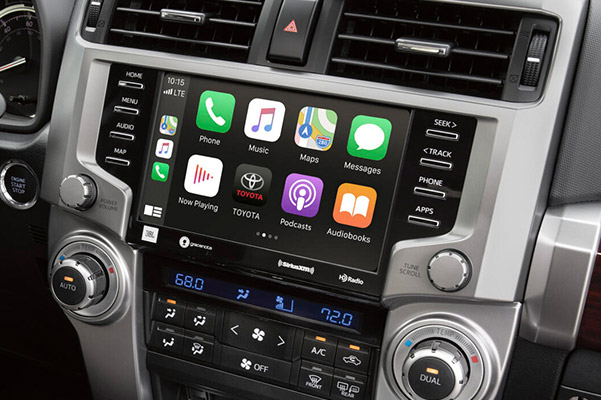
Is your Apple CarPlay Not Working when you’re about to drive? That’s probably the most annoying situation any driver could find themselves in. You want to enjoy your music, browse maps and take calls in Virginia. Instead, your screen stays blank and fails to connect just when you need it. Most of these problems are easy enough to solve with simple repair steps. Mr Repair USA helps Virginia drivers fix their CarPlay and drive happily again.
1. Quick Checklist: Fast Fixes to Try First
- Restart everything Power down both your iPhone and the car’s screen fully, wait and restart soon.
- Try a new cable. Connect with another Lightning cable and USB port to test the connection.
- Check Siri and unlock: Always ensure Siri is active and your iPhone stays unlocked correctly.
- Update iOS right now: Especially important if you have apple CarPlay not working after the iOS 17 update, because a simple update fixes it fast.
2. Common Reasons Apple CarPlay Is Not Working
- Bad cable or port: A non-MFi-certified Lightning cable is a super common cause of wired CarPlay failures that drivers face every day.
- Bluetooth or Wi-Fi trouble: This causes Bluetooth connected but CarPlay not working issues, which can feel really frustrating when you expect a wireless connection.
- Software bugs: Apple CarPlay not working after iOS 18 update is a well-known problem that many Virginia drivers have reported right now.
- Wrong settings: Screen Time controls or a switched-off Siri can cut CarPlay off at the root, even when your phone cable and car connection all appear to be set up perfectly right.
3. Step-by-Step Troubleshooting for Wired CarPlay Problems
- Test your cable and port: Always use a real phone wire and keep your plug very clean.
- Check iPhone settings: Open Settings, then select General, then CarPlay and confirm all permissions are allowed.
- Reset connections: Forget your existing car, reboot the iPhone and car, then connect both freshly again.
- Test with another phone: Get a second Apple phone and find out which part is broken.
4. Troubleshooting Wireless CarPlay Connection Issues
- Confirm wireless requirements: Try to see if your phone and car both allow cord-free links.
- Reset Bluetooth and Wi-Fi: Quickly toggle Bluetooth and Wi Fi off, then on and forget the car profile before starting a fresh pairing.
- Reduce interference: Stop other Bluetooth units nearby and bring your phone directly nearer to the infotainment setup when linking.
- Clear old pairings: If the car stops new phones after some time, remove saved phones you have no need for now.
5. Fixing Audio, Phone, Maps and App-Specific CarPlay Issues
- No sound at all: Try your car music source and the sound levels on your screen. Make sure your phone sends sound to your car in the right way
- Phone calls not working: Look for mic rules and try a normal call to find bugs.
- Maps lagging or crashing: Update the Maps app right away and close any background apps that might be slowing your system way down.
- Missing app icons: Go to Settings, then General, then CarPlay, then your car name and re-enable any apps that got turned off.
6. Advanced Fixes: Resets, Updates and Diagnostics
- Update iOS and car firmware: Always follow Apple and manufacturer instructions carefully because Apple CarPlay not working after iOS 26 update is often solved this way.
- Reset network settings: Go to Settings, then General, then Transfer or Reset iPhone, then Reset, then Reset Network Settings to clear all glitches.
- Factory reset infotainment: Do this only when nothing else has worked and always back up your settings completely before doing this step.
- Run diagnostics: Need official tools or visit a store for good gear tests. Get all your phone parts checked for any hidden bugs right now.
7. When to Seek Professional Help and Preventive Best Practices?
- Visit your car dealer: When your main screen or ports seem broken now. Pick an expert to check if the car itself has a big problem. You must update all your gear often so that old bugs vanish.
- Contact Apple Support: Reach out if your iPhone hardware, such as a damaged Lightning port or an iOS-level fault, keeps coming back again.
- Use certified cables always: Apple-certified cables prevent way more problems than you might think and save you a lot of trouble later.
- Keep a troubleshooting card: Store a backup cable and restart steps in your glovebox so you are always ready for any future issues.
Why Choose Mr Repair USA for Apple CarPlay Not Working Issues?
Mr Repair USA is Virginia’s most trusted tech repair team, and we fix Apple CarPlay not working iPhone 16 and all other CarPlay problems really fast. Our team understands every type of CarPlay issue, from wired connection failures to wireless pairing problems and app-specific glitches that drive you crazy.
We serve drivers all across Virginia with fast, reliable, and friendly service that gets you back on the road right away without any stress. Visit us right now and let our experts take care of your CarPlay problem so you never have to deal with it again.
Conclusion
Apple CarPlay connection trouble can grow from something tiny, like a cracked cable or a locked setting, or it can point to more serious software or hardware faults that need proper expert care. Thankfully, most fixes are quick wins, starting with restarts, cable changes, Siri checks, and deleting old Bluetooth car profiles that may be causing conflict.
Go through the wired or wireless troubleshooting path that fits your CarPlay setup and handle any app-level issues like audio drops or map crashes as they appear. Call an expert or do deep tests only when simple ways fail to work. Always use good power wires and keep your phone system very fresh. You must update all your gear often so that old bugs vanish. Virginia drivers trust Mr. Repair USA for every CarPlay fix done right.
Frequently Asked Questions
How to reboot Apple CarPlay?
To restart Apple CarPlay, disconnect your iPhone, restart it, and turn your car off and on. For a full reset, go to Settings > General > CarPlay, forget your car, then reconnect.
Why is my Mazda not connecting to Apple CarPlay?
To fix Mazda CarPlay not working, restart your iPhone and the Mazda system by holding Back + Nav + Volume for 10 seconds. Use an Apple-certified cable, enable Siri, and allow Mazda in CarPlay settings.
How can I get my Apple CarPlay to work?
To use CarPlay, connect your iPhone to the car’s USB port or pair it with Bluetooth or Wi-Fi. Make sure Siri is turned on and CarPlay is allowed in iPhone settings.
How do I update Apple CarPlay?
CarPlay updates automatically when you update your iPhone’s iOS. Go to Settings > General > Software Update to install updates. Also, check your car’s infotainment system for any available firmware updates.
Why is my phone not responding to CarPlay?
To fix Apple CarPlay issues, restart your iPhone and car, enable Siri, and update iOS. For wired connections, try another certified cable. For wireless, turn Bluetooth and Wi-Fi off and on.
