
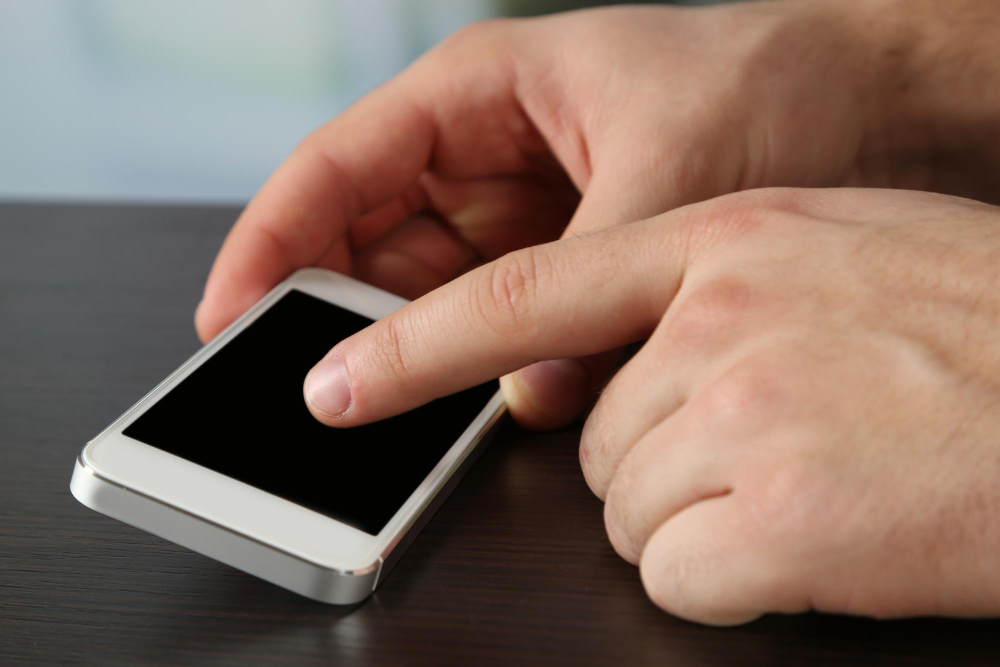
Imagine trying to use your phone and it just ignores you. Your taps do nothing. Your swipes go nowhere. Part of the screen feels completely dead. That’s beyond frustrating. It basically turns your phone into an expensive paperweight.
And it always happens at the worst possible moment. You need to send a text. Or check directions. Or open an important app. But your screen just won’t cooperate. So what’s really going on? Is it a software bug? A dirty screen? Or something more serious inside? These are the questions running through your head. And honestly, they are valid.
Most touchscreen problems are fixable. This blog gives you easy step-by-step troubleshooting solutions why Phone Touchscreen Not Responding. It helps you figure out exactly what’s wrong. And if the problem runs deeper, Mr Repair USA in Alexandria and Manassas is ready to help you out.
Why Phone Touchscreen Not Responding?
A touchscreen can stop responding for many reasons. Sometimes it is caused by software issues like bugs or app conflicts. In other cases, the screen may be dirty or damaged, or the phone may need a reset. Knowing the cause helps you choose the right phone touchscreen not responding troubleshooting solutions.
1. Restart Your Phone First
The easiest of simple phone touch screen not working is to restart your device. A reboot eliminates temporary software glitches and resets the touch function to normal.
Tips:
- Press and hold the power button until you see the restart option.
- If the screen is unresponsive, press down and hold the power key for 30 seconds to restart the phone.
This can correct a lot of temporary software problems in short order.
2. Clean the Screen Carefully
If there is dust, oil fingerprints, or moisture on the screen, this may interrupt your touch. There are special sensors below the glass in the screen that can mistake or ignore your touch if it is dirty.
Cleaning Steps:
- Turn off your phone
- Use a soft, dry microfiber cloth to wipe it
- Wipe softly from the center of the screen to its edges.
One of the simplest and most effective phone touchscreen not working solutions is to clean your device’s screen.
3. Remove Screen Protector or Case
Sometimes protective accessories like screen protectors or thick phone cases can interfere with touch sensitivity. Devices vary in how they respond to added layers of material.
How to Try:
- Remove the screen protector
- Take off the phone case
- Test touch input without them
If the screen begins working better, then an accessory was likely part of the issue.
4. Check for Software Updates
Software updates often include fixes for bugs that can affect touch responsiveness. Installing the newest system update is a common troubleshooting solution for a phone touchscreen not responding, recommended by many manufacturers.
How to Update:
- Go to Settings > Software Update
- Install available updates
- Restart your phone
Updated software can correct hidden bugs that cause unresponsive screens.
5. Turn on Safe Mode
If your touchscreen does work in Safe Mode, it’s then likely that you have a downloaded app that is causing the issue. Safe Mode loads only the essentials, so you can see if it’s a third-party app that is causing the issue.
Steps:
- Hold down the power button
- Long‑press Power Off
- Tap OK to reboot into Safe Mode
If you can use touch in Safe Mode, then start removing the apps (which you have recently installed) and see if everything goes back to normal.
6. Try a Soft Reset or Force Restart
If that doesn’t work and your screen is completely unresponsive, a soft or forced restart will usually get it up and running again. For most phones, you press and hold the power button and volume button together for about 10–30 seconds until the phone restarts.
It fixes a common software hang that we see in phone screen not responding solution, so it refreshes the system.
7. Test Different Areas of the Screen
If part of the screen works and part doesn’t, you may be dealing with hardware damage. However, you can test touch responsiveness manually by dragging your finger slowly from one corner to another.
To Test:
- Touch and hold the top left
- Slowly slide to the bottom right
- See if the swipe is recognized across the entire screen
If the swipe won’t register in certain sections, it may signal a deeper issue.
8. Back Up Data & Reset Settings
If software problems persist and the technical steps above don’t help, you can reset all settings before trying more drastic measures like a factory reset. A reset can clear deeper bugs that affect touch processing.
Steps:
- Back up your phone data
- Go to Settings > System > Reset Options
- Reset all settings or perform a factory reset
A factory reset erases all data, so be sure to back up contacts, photos, and apps first.
9. Check for Physical or Water Damage
Some touch screen problems are attributed to physical drop, fall, or hard impacts or water damage on the device. These can shatter internal layers, such as the digitizer that detects your touch.
- Signs of hardware issues include:
- Cracks in the screen glass
- Unresponsive areas after testing
- When coming into contact with water or other Liquids
However, if there’s structural damage to your phone, none of the following troubleshooting steps can really help you, and you may be in need of an expert’s help.
10. When to Seek Professional Repair
If you have tried all of the above and your touchscreen still doesn’t respond consistently, you should probably take it to professionals. A hardware failure, such as a cracked digitizer or internal component,t requires tools and dexterity that users probably won’t have at home.
At Mr Repair USA, we help customers in Alexandria, VA, and Manassas, VA with full touchscreen diagnosis and repair. We test phones that won’t respond to touch and can replace screens or internal parts, so your device works again. Visit our shops for expert service you can trust.
Conclusion
An unresponsive touchscreen can halt everything you do on your phone. Knowing how to fix the phone touchscreen not responding issues is important as it provides you with an opportunity to repair common causes that may be clogging your screen, such as dirt, screen protector, inner problems of apps, and outdated software.
Begin with easy fixes like wiping down the screen and restarting your phone and work your way up to going into Safe Mode and checking for software updates.
If the screen still won’t function properly, the issue might be hardware-related and need professional repairs at Mr Repair USA in Alexandria or Manassas. With some delicate moves and support, you can get your touchscreen working again.
FAQ
Why does the touch screen of my phone stop working suddenly?
It’s frequently triggered by software bugs, general slowness of apps, or if the screen is covered in dirt.
Can I resolve an unresponsive touch by cleaning the screen?
Yes, cleaning the screen with a micro cloth does, in fact, remove grime and oils that can clog touch sensors.
What if I only have a partially blacked-out screen?
This often suggests internal hardware damage, such as the digitizer, which needs professional repair.
Does updating my phone help with touchscreen issues?
Yes, updates often fix bugs affecting touch recognition.
Should I reset to factory settings if the touchscreen is still not working properly?
Only if you have backed up all your data and tried everything else.
