
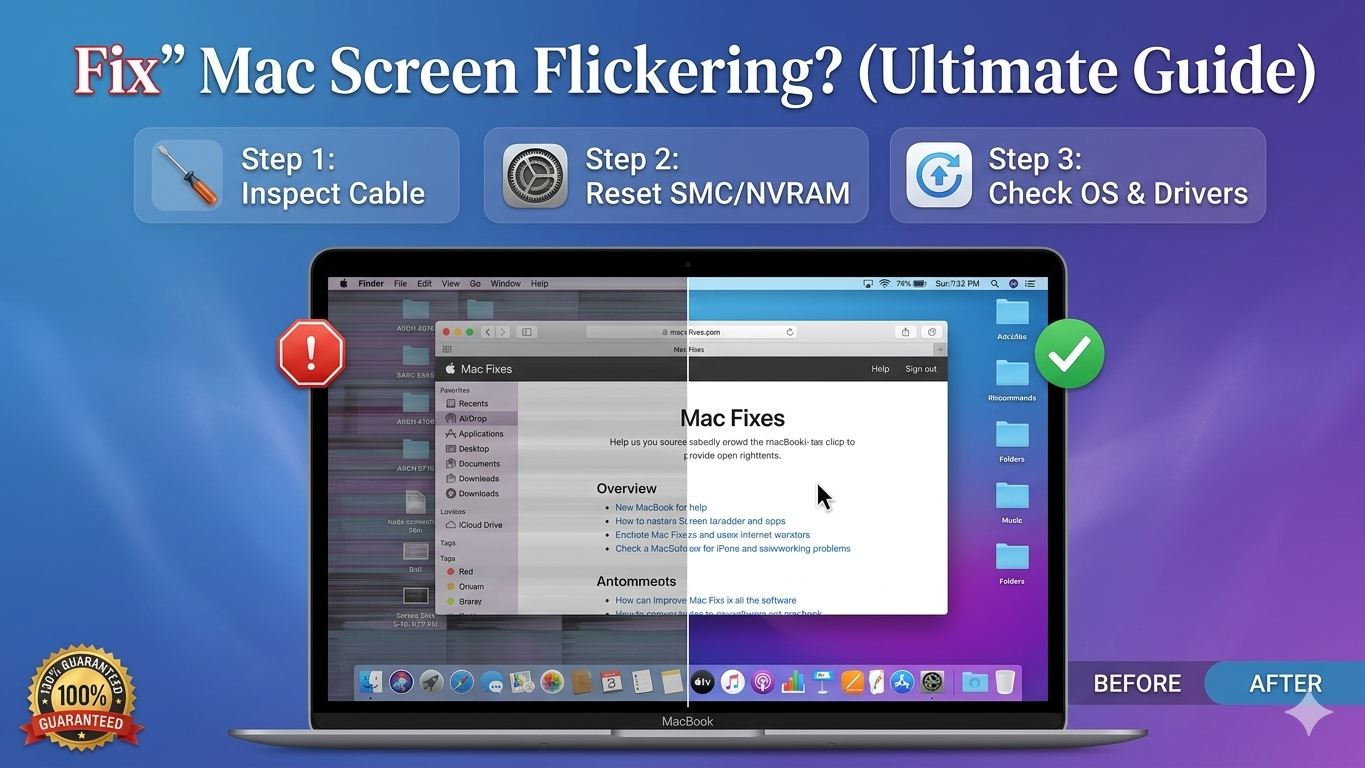
A MacBook Pro screen flicker in 2019 can be a very frustrating experience for users. This problem makes it difficult to work or watch videos on your expensive laptop. Whether you are a professional or a tech user, diagnosis is very essential here. You may see lines popping up or flashing across your display screen. Our specialists will identify whether it is a hardware issue or software. We guide you through the process of restoring your MacBook in a stable environment.
Common Causes of MacBook Screen Flickering
Knowing what makes the flicker gives you start to pick the best repair quickly. There are many reasons that may cause this irritating screen issue on your device.
-
- Software System Glitches: Older macOS versions or corrupted files may cause your screen to flicker.
-
- Attal Third Party Applications: Some applications may contradict your take on display settings of your MacBook.
-
- Incorrect NVRAM Settings: A misfire in the non-volatile memory can interfere with your entire screen.
-
- Loose Hardware Connections: If the display cable or backlight component gets damaged during Tactile switches key disassembly, you will experience permanent screen flickering.
How to Diagnose and Fix a x MacBook Pro Screen Flicker Issue?
Use the expert technique below to locate and address the issue of a flickering screen.
Step 1: Perform a Simple System Restart
Click on the Apple logo to reboot your laptop. A reboot can remove temporary bugs and reactivate many background system functions. Watch closely the screen once the MacBook reboots to see whether it becomes stable. This is the simplest fix for a minor software glitch at home. It frequently addresses minor display problems without the need for professional tools or skills.
Step 2: Boot Your MacBook into Safe Mode
Shut down your laptop and hold the shift key while turning it back on. Safe Mode starts the system with only essential processes to find software conflicts. If the flicker stops here then a third party app is the cause. You should remove any recently installed apps to fix the display problem permanently. This step helps you rule out hardware damage before seeking professional repair help.
Step 3: Reset the NVRAM and SMC
Hold specific keys during startup to reset the internal system and power controllers. This will reset cached settings potentially interfering with screen refresh rate. SMC controls power to the display backlight, so if it ever becomes stuck, resetting the SMC can help fix this. Check the screen for stability after the reset process is completely finished here. These deep resets are vital for fixing persistent MacBook display flickering issues quickly.
Why Choose Professional Repair Services?
Fixing a flickering screen on MacBook at our shop ensures a perfect result.
-
- Expert Diagnostic Tools: Our team uses professional tools to find the exact hardware fault.
-
- Same Day Repairs: We can replace your broken display cable or screen very quickly.
-
- Only High Quality Parts: In our shop, only the best parts are used for a stable display.
-
- Warranty: All repairs come with a warranty to provide you peace of mind.
Conclusion
Software glitches or hardware failures can turn a screen into a flicker-factory. Most issues come from minor system errors or a simple incorrect display setting. However, if the flicker stays, then professional hardware repair is usually required here. Our expert team in Houston can diagnose and fix your MacBook screen quickly. Visit our local shop to bring your favorite laptop back to life soon. We ensure that your screen works perfectly and stays flicker-free once again.
Frequently Asked Questions
How to fix a MacBook Pro flickering screen?
Fix MacBook Pro screen flickering by restarting, updating macOS, and turning off True Tone or automatic graphics switching. You can also reset NVRAM or use Safe Mode. If it continues, it’s likely a hardware issue.
Why is my screen flickering all of a sudden?
Screen flickering usually comes from loose cables, wrong display settings, or outdated graphics drivers. Check connections first, then update drivers, fix refresh rate or resolution, and look for app conflicts.
How much does it cost to fix a flickering MacBook screen?
MacBook screen repair costs usually range from $300 to $800+ for full display replacement. Cable fixes cost $150–$300. With AppleCare+, it may cost $99, while Pro models can exceed $500–$900
Why is my Mac spazzing out?
Screen flickering may happen due to graphics card switching to save battery, macOS bugs, or issues within apps like Netflix.
Can I fix my MacBook screen flickering at home?
Yes, if it’s a software glitch! Try resetting the SMC/NVRAM or updating your macOS. However, if the flickering happens when moving the laptop lid, it’s likely a hardware issue (like Flexgate) that requires a professional repair.
