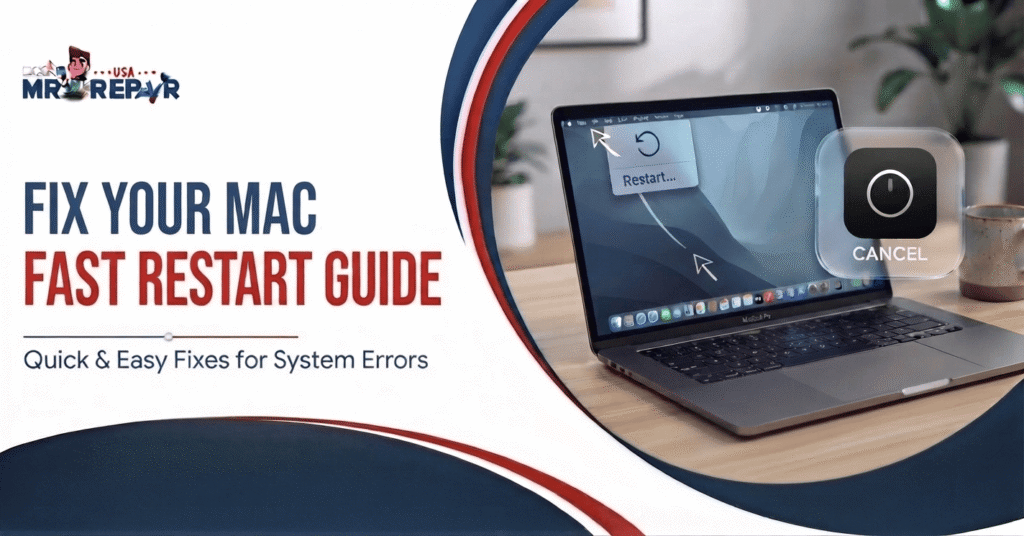
Most Mac users should start with a normal restart. This method works when your screen and apps respond. Apple recommends using the Restart option inside the Apple menu.
- Apple Menu: Click the Apple logo at the top left.
- Restart: Select Restart from the menu shown.
- Reopen Windows: Close this option for a cleaner startup.
- Save Work: Save open files before restarting your Mac.
- Wait: Let your Mac finish restarting before opening apps.
A normal restart closes open apps first. Your Mac then starts again from the system screen.
This method works for MacBook Air, MacBook Pro, iMac, and Mac mini. The same Apple menu option works across these models.
How to Restart a Mac With the Keyboard
Your mouse might stop working during a system problem. A keyboard restart gives you another way forward. Keyboard shortcuts also help when your trackpad stops responding.
Restart Mac With a Keyboard Shortcut
Press Control, Command, and the power button together. On newer MacBooks, use the Touch ID button. This shortcut restarts your Mac without opening the Apple menu.
Save your work first whenever the system responds. Keyboard restarts might close open apps without saving changes. Use this method when normal menus feel difficult.
How to Restart a Mac Without a Mouse
You don’t need a mouse for every restart. Use keyboard commands when your pointer stops moving. The Control and Command shortcut works on supported Mac models.
If the shortcut fails, shut down your Mac first. Hold the power button until your Mac turns off. Then press it once to start your Mac again.
How to Restart MacBook With Keyboard
MacBook Air and MacBook Pro support keyboard restart options. Newer models use Touch ID as the power button. Older Intel models also support startup keyboard commands.
Apple says you should press shortcut keys together. Don’t press each key one after another. This gives your Mac the correct startup command.
How to Restart a Mac When Frozen
A frozen Mac needs a different restart method. First, give the screen a few seconds. Sometimes an app needs time before responding again.
- Force Restart: Hold the power button until shutdown.
- Frozen App: Try Force Quit before restarting.
- Black Screen: Check power and charging connections.
- No Mouse: Use the power button instead.
- Lost Work: Expect unsaved changes to disappear.
Apple warns that forced shutdowns might cause the loss of unsaved work. Use this method only when normal controls stop responding.
A frozen Mac doesn’t always mean hardware trouble. One bad app might cause the whole screen to stop responding. Repeated freezing deserves closer checking.
How to Restart a Mac in Safe Mode
Safe Mode starts your Mac with fewer startup items. It also helps check certain software problems. The steps differ between Apple Silicon and Intel Macs.
Safe Mode on Apple Silicon Macs
Shut down your Mac before starting Safe Mode. Hold the power button until startup options appear. Select your startup disk and hold Shift.
Choose Continue in Safe Mode after the option appears. Your Mac then starts with Safe Mode active. Apple uses this process on newer Macs.
Safe Mode on Intel Macs
Shut down your Intel-based Mac first. Press the power button to start it. Then hold Shift during the startup process.
Keep holding Shift until the login screen appears. Safe Mode then loads instead of normal startup. Apple lists Shift for Intel Safe Mode startup.
Why Safe Mode Helps
Safe Mode helps when startup problems keep returning. It gives you a cleaner way to test your Mac. Repeated crashes might point toward apps or system issues.
If your Mac works normally there, check recent software. Remove suspicious login items and recently added apps. Then restart normally and test again.
How to Restart a Mac in Recovery Mode
Recovery Mode helps with deeper Mac problems. It also gives access to Disk Utility and macOS reinstall tools. The startup method depends on your Mac type.
- Apple Silicon: Hold the power button during startup.
- Intel Mac: Press Command and R after startup.
- Disk Utility: Check your startup disk for errors.
- Time Machine: Restore files from an available backup.
- Reinstall macOS: Reinstall the system from Recovery.
Recovery Mode isn’t a normal restart method. Use it when regular startup keeps failing. Apple provides different steps for Apple Silicon and Intel Macs.
How to Restart a Mac in Recovery Mode
On Apple Silicon, hold the power button first. Release it after startup options appear. Choose Options to enter macOS Recovery.
On Intel Macs, press Command and R after startup. Keep holding both keys until Recovery appears. Apple confirms these steps for current Macs.
How to Restart MacBook Air and MacBook Pro
MacBook Air and MacBook Pro follow similar restart steps. Your chip type matters more than your laptop name. Apple Silicon Macs use newer startup controls.
A normal restart still starts from the Apple menu. Touch ID also acts as the power button. If your Mac freezes, hold Touch ID until shutdown.
Don’t close your MacBook during shutdown. Wait until the screen goes black first. Apple warns against closing the display too early.
How to Restart Mac Mini and Other Mac Computers
Mac mini doesn’t have a built-in laptop keyboard. Use the Apple menu for normal restarts. You also use its power button during serious freezes.
The same idea applies to iMac and Mac Studio. Save your work before restarting whenever possible. Use force shutdown only when regular controls fail.
For a Mac mini, check its power connection first. A loose cable might look like a frozen system. Check your monitor connection too.
Should You Restart or Shut Down Your Mac?
Restarting and shutting down serve different needs. Restarting turns the Mac off and starts it again. Shutting down leaves it fully powered off.
Restarting works well after software problems or updates. Shutting down makes sense before moving or opening hardware. Apple also recommends shutting down before certain internal hardware work.
For normal computer problems, choose Restart first. It’s faster and keeps your next session simple.
What Happens After You Restart a Mac?
Your Mac closes active apps during restart. Open windows might return after startup. Apple lets you stop those windows from reopening.
Look for the Reopen windows option before restarting. Clear it if you want a cleaner startup. This helps when many apps open automatically.
Restarting doesn’t erase your personal files. It also doesn’t reset your Mac. A restart simply starts macOS again.
Repeated freezing tells you something else needs checking. Don’t force-restart your Mac several times without reason. Check apps, storage, updates, and hardware next.
How Phone Fix & Jewelry Can Help
Phone Fix & Jewelry helps with many device problems. The Alexandria shop handles phones, tablets, laptops, and consoles. Laptop repair covers common hardware and software problems.
A Mac with a broken screen needs proper testing. Charging faults also need careful hardware checks. Keyboard problems might make normal controls difficult.
The shop checks devices before repair work begins. Technicians test repaired functions before you leave. Repairs also include written warranty coverage for parts and labor.
Phone Fix & Jewelry operates at 504C S Van Dorn St. The shop offers same-day service for many repairs. Free parking is available outside the Van Dorn location.
If your laptop needs repair help, call (703) 328 0514. You can also visit the shop during business hours.
What If Your Mac Still Won’t Restart?
A Mac that repeatedly freezes needs more than restarts. Check the charger and power connection first. Then test Safe Mode for startup problems.
If Recovery Mode also fails, hardware might need attention. A damaged drive, battery, screen, or board might cause problems. Don’t keep forcing shutdowns without checking the cause.
Back up your files whenever your Mac starts normally. A recent backup gives you more safety during repairs. It also makes system recovery less stressful.
Conclusion
Restarting your Mac usually takes only a minute. Start with the Apple menu when your Mac responds. Use keyboard commands when your mouse stops working. Force shutdown fits frozen screens only.
Safe Mode helps check startup-related problems. Recovery Mode handles deeper system issues. Repeated failures might point toward hardware trouble.
If your Mac needs repair, call Phone Fix & Jewelry. Their Alexandria shop handles laptop repair and related issues. Call (703) 328 0514 for help.
Frequently Asked Questions:
How can I force restart my Mac?
Hold the power button until your Mac shuts down. Wait briefly, then press it again. Unsaved work might disappear during this forced shutdown.
How do I restart a Mac with my keyboard?
Press Control, Command, and the power button together. Newer MacBooks use Touch ID as the power button. Save open work first whenever possible.
How do I reboot my Mac?
Click the Apple menu at the top of your screen. Select Restart and confirm the choice. Your Mac closes apps before starting again.
Is it better to restart or shut down a Mac?
Restart your Mac for common software problems. Shut it down before hardware work or moving. Both options serve different needs on your Mac.
Will I lose anything if I restart my Mac?
A normal restart doesn’t erase saved files. Unsaved work might disappear if apps close. Forced shutdowns carry the highest risk of lost changes.