
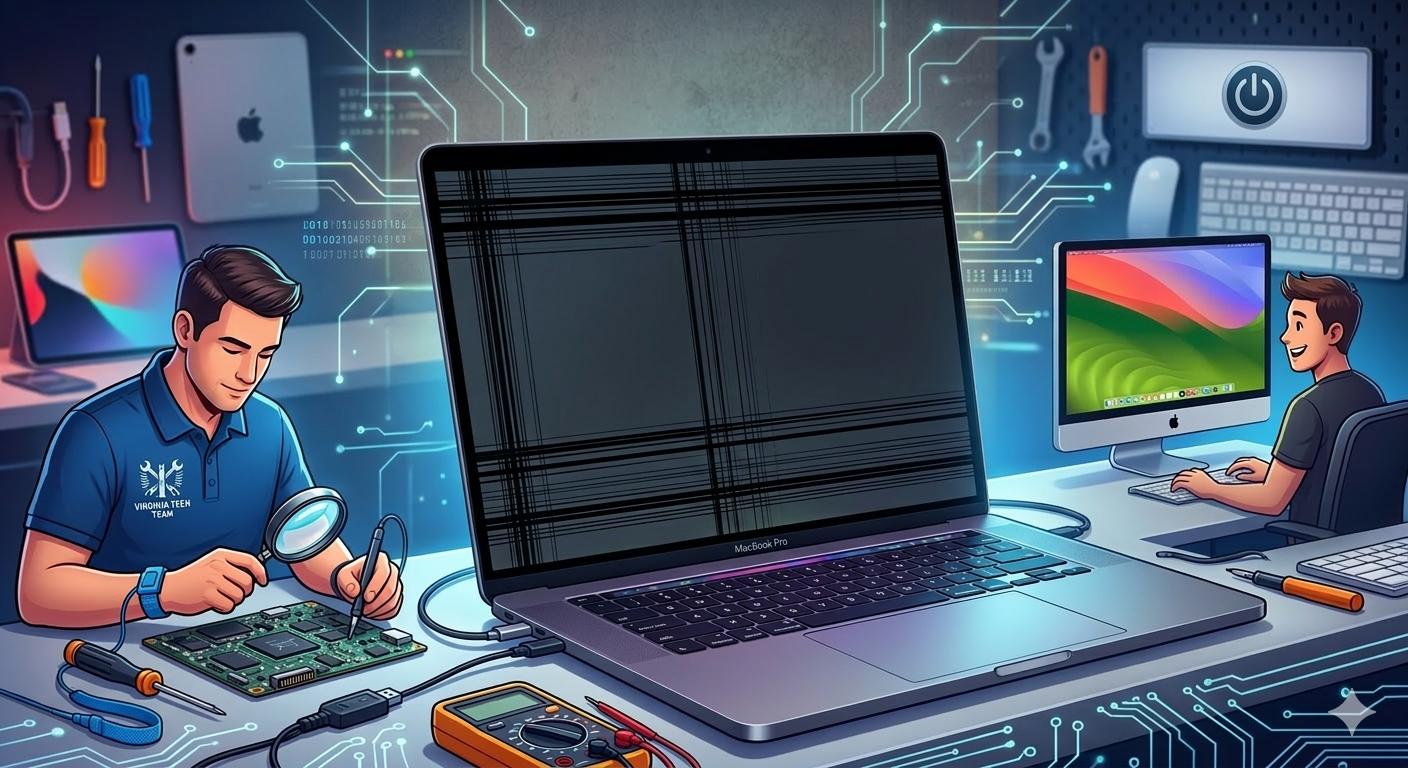
Black Lines on Bottom of MacBook Pro screen are one of the scariest things to see. You open your MacBook, and suddenly there are weird dark bands across your display. Your heart sinks because you think your expensive MacBook is completely ruined. But do not panic, because this problem is way more common than you think.
Some causes are super simple software fixes you can do at home yourself. Other causes need professional repair from a trusted tech team. Mr Repair USA has fixed hundreds of MacBook Pro black lines on the bottom of the screen for customers. We know exactly what causes this and how to fix it fast.
Our team diagnoses MacBook LCD issues quickly and at great prices. Visit mrrepairusa.com before spending money at an Apple Store. Let us help you understand exactly what the black line on the front of a MacBook Pro is right now. This guide covers every cause and every fix you need today.
What Causes Black Lines on Bottom of MacBook Pro Screen?
Four Main Causes to Know
Understanding the cause helps you pick the right fix way faster. Black lines at the bottom of a MacBook Pro screen come from four main things. Knowing which one you have saves you time and a lot of money.
Cause 1: Software Glitch or Graphics Driver Bug
Sometimes, MacBook Pro lines-on-screen issues are just a software problem inside. A corrupted graphics driver can send wrong signals to your display panel. This makes black horizontal lines on a MacBook screen appear even on a perfectly healthy display.
The good thing is that software fixes are completely free to try at home. If a software fix works, you just saved yourself hundreds of repair dollars. Always try software fixes first before assuming hardware damage exists.
Cause 2: Flex Cable Wear, Known as Flexgate
Flexgate is a well-known MacBook Pro screen bottom black design problem on many models. The display cable runs through the hinge and bends every time you open it. Over thousands of openings, the cable slowly wears out and frays inside. This causes black lines on the MacBook Pro screen near the hinge area specifically.
Certain 2016 and 2017 MacBook Pro models are especially known for this. Apple even had a repair program for some Flexgate-affected models previously. MacBook users with older Retina models should check this cause first.
Cause 3: Physical Damage to the LCD Panel
Dropping your MacBook or putting pressure on the lid can cause a MacBook LCD issue quickly. A cracked or damaged LCD panel shows a black line on a MacBook screen. Sometimes the damage is internal, so you cannot see cracks from the outside.
Liquid damage also corrodes the display layers and creates dark bands. If your MacBook took a drop recently, this is probably the cause. Physical screen damage always needs professional repair to fix properly.
Cause 4: GPU or Logic Board Problem
A failing GPU is the most serious cause of horizontal lines on MacBook Pro screen problems. When the graphics card fails, it sends corrupted signals to your display. These lines appear on every display, including external monitors you connect.
This is different from a screen problem because the GPU affects everything. Fixing screen problems caused by GPU issues requires logic board repair. This is the most expensive fix, so rule out all other causes first.
How to Know if It Is the Screen or the GPU?
The External Monitor Test
This simple test tells you exactly what is broken at home. Connect your MacBook to an external monitor or TV, then look carefully at the external screen for any black lines on the Mac screen. If lines appear on the external screen, your GPU has a problem. If the external screen is clean, your internal LCD has the problem.
The Screenshot Test
Take a screenshot using Shift Command 3 on your keyboard. Open the saved screenshot file and look at it very carefully. If black lines appear in the saved image, your GPU is causing this. If the saved image looks clean, your physical LCD panel is damaged. This is the fastest way to diagnose black lines at the bottom of a MacBook Pro screen without opening the machine.
7 Easy Fixes for Black Lines on the Bottom of the MacBook Pro Screen
Fix 1: Restart Your MacBook First
A simple restart fixes many MacBook display line problems instantly. Go to the Apple menu and click Restart right now. Wait for your MacBook to fully start back up and check the screen. This takes 60 seconds and costs you absolutely nothing at all. Many users fix their MacBook screen black lines problem this way, fast.
Fix 2: Reset the SMC
Resetting the SMC fixes power and display issues causing horizontal lines on a MacBook. Shut down your MacBook completely right now. Unplug everything, including the power cable, immediately. Wait 15 seconds patiently without touching anything. Plug the power cable back in carefully. Wait 5 more seconds, then turn your MacBook on. Check if the black lines on the bottom of the screen are gone.
Fix 3: Reset NVRAM and PRAM
NVRAM stores display settings, and resetting it fixes many MacBook LCD issues. Shut down your MacBook completely first. Press the power button to turn it back on. Immediately hold the Command, Option, P, and R keys together. Hold all four keys until you hear the startup sound twice. Release all keys and let your MacBook finish starting up. Check your screen for lines at the bottom of the MacBook Pro screen once it reboots.
Fix 4: Update macOS
Outdated macOS causes graphics driver bugs, creating MacBook Pro screen lines quickly. Connect to WiFi on your MacBook. Click the Apple menu, then System Settings. Click General, then Software Update. Download and install any available macOS update. Restart your MacBook after the update finishes. Check if the MacBook screen black with lines issue is resolved now.
Fix 5: Turn Off Automatic Graphics Switching
This forces your MacBook to use only the stronger dedicated GPU always. Open System Settings on your MacBook. Click Battery settings in the left menu. Uncheck the Automatic Graphics Switching option. Save your settings and restart your MacBook now. Check if the black lines on the screen disappear after a restart.
This fix works really well for screen damage caused by GPU switching bugs.
Fix 6: Reinstall macOS Completely
Reinstalling macOS fixes deep software corruption causing mac screen black lines. Shut down your MacBook and restart it. Hold Command-R immediately after pressing the power button. macOS Recovery Mode loads on your screen. Select Reinstall macOS from the options menu. Follow the on-screen instructions carefully to completion. Your data stays safe because reinstalling does not delete your files.
Fix 7: Connect an External Monitor as a Temporary Fix
If you cannot repair it right away, use an external monitor temporarily instead. Connect any HDMI monitor to your MacBook using an adapter today. Close your MacBook lid and work on the external screen completely. This keeps you productive while waiting for your MacBook screen repair. Users love this workaround from the Mr Repair USA team.
How Much Does MacBook Screen Repair Cost?
Knowing repair costs helps you make a smart decision before committing. LCD replacement costs between $300 and $900, depending on the model. Flexgate cable repair costs between $100 and $300 at most repair shops. GPU or logic board repair costs between $400 and $1,500 or more. Software fixes at Mr Repair USA cost way less than Apple Store prices.
Always get a written estimate before agreeing to any repair work. Mr Repair USA gives honest estimates before touching your MacBook. Visit mrrepairusa.com for a fast and fair repair quote today.
Why Choose Mr Repair USA for MacBook Repair?
Mr Repair USA is the most trusted MacBook repair team for customers. We fix black lines on the bottom of MacBook Pro screens for every model. Our technicians diagnose your MacBook LCD issue in minutes, not days. We are way more affordable than Apple Store Genius Bar repair prices. Thousands of happy customers trust Mr Repair USA every single day. We fix screen damage, GPU issues, Flexgate problems, and way more, always. Visit mrrepairusa.com and book your MacBook repair today.
Conclusion
Black lines on the bottom of a MacBook Pro screen are scary but often fixable fast. Start with free software fixes like restarting, an SMC reset, and a macOS update. Use the external monitor and screenshot tests to find the real cause. If hardware is damaged, do not wait, because problems get way worse over time.
Visit mrrepairusa.com for fast, affordable MacBook repair. Mr Repair USA fixes every MacBook Pro screen damage problem quickly and reliably. Do not let black lines on your Mac screen ruin your work. Get help from us today.
Frequently Asked Questions
How to fix black lines on a MacBook Pro?
Your MacBook Pro’s black lines can go away after resetting the SMC or NVRAM. Safe Mode or a macOS update can also resolve MacBook Pro black lines on screen quickly without any hardware work.
How to fix black lines on the bottom of a laptop screen?
Start with the same software steps used for a MacBook: restart the device, reset the SMC or NVRAM if applicable, and update the operating system. If black lines at the botof a ofa MacBook Pro screen persist after these steps, the display cable or panel likely needs professional repair.
Why are there lines on the bottom of my MacBook screen?
This is usually caused by a worn flex cable near the hinge, known as Flexgate, though software glitches, physical damage, and GPU failure can all produce horizontal lines on a MacBook Pro screen as well.
What are the black lines on the bottom of my screen?
These are typically a sign of display cable wear, LCD panel damage, or a graphics driver issue. Running the external monitor test is the fastest way to tell whether the black line on a MacBook Pro screen is coming from the panel itself or the GPU.
Can a software update fix lines on a MacBook screen?
Yes, in many cases. Updating macOS resolves graphics driver bugs that create a MacBook screen black with lines, though physical damage like a cracked panel or a frayed flex cable will still need a hands-on repair.